Roland MT-32 Emulator: Authentic 90s Sierra Audio Setup
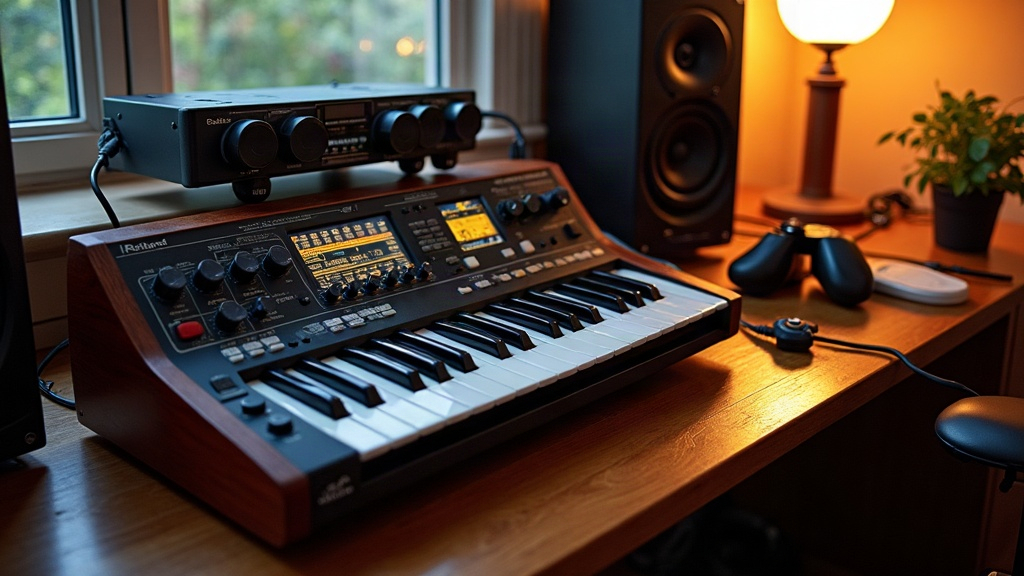
If you grew up with King’s Quest, Space Quest, or Leisure Suit Larry, you know the sound. Warm, a little synthetic, instantly nostalgic. That sound came from the Roland MT-32, a MIDI module Sierra’s composers wrote music directly for, note by note. Here’s how to set up an MT-32 emulator so these games play exactly as intended, years before Sound Blaster took over as the go-to standard.
Why the MT-32 Matters for Sierra Games
Before General MIDI was even a thing, Sierra’s in-house composers (Ken Allen among them, along with the rest of the Sierra Sound System crew) built their scores around the MT-32’s specific instrument patches. You can run these games through generic MIDI or Sound Blaster FM synthesis and technically hear music, sure. But you lose the real instrumentation, the reverb, the dynamic range the composers actually designed. An MT-32 emulator fixes that by recreating the module’s internal synth chip in software, giving you bit-accurate audio without needing to track down a $500 hardware unit on eBay.
What You’ll Need
- A DOS game or emulator environment (DOSBox, DOSBox-X, or ScummVM for supported titles)
- Munt, the most accurate open-source MT-32 emulator out there, built from reverse-engineered firmware
- MT-32 control and PCM ROM files (
MT32_CONTROL.ROMandMT32_PCM.ROM), which you need to obtain legally yourself, usually by dumping them from original hardware or a licensed source - A game confirmed to support MT-32 audio (most pre-1992 Sierra titles qualify)
Step-by-Step Configuration
1. Install Munt
Grab Munt from its official GitHub repository. You can run it as a standalone application or as a virtual MIDI driver (there are VSTi variants floating around too, but for beginners the standalone GUI is by far the easiest path).
2. Add the ROM Files
Drop MT32_CONTROL.ROM and MT32_PCM.ROM into Munt’s ROM folder. On launch, Munt should show “ROM loaded successfully.” If it doesn’t, check the filenames character by character and verify the files aren’t corrupted.
3. Configure DOSBox for MIDI Output
In your dosbox.conf file, set:
[midi] mididevice=win32 midiconfig=2
That midiconfig number needs to match the virtual MIDI port Munt creates. Check your OS’s MIDI device list for something like “MT-32 Synth Emulator” and use the corresponding port number.
4. Launch Munt Before DOSBox
Munt has to be running first, otherwise DOSBox has nothing to route its MIDI output to. Just minimize it and let it sit in the background while you play.
5. Select MT-32 Sound in the Game
Most Sierra installers (through INSTALL.EXE or the SIERRA.COM setup utility) ask you to pick a sound card. Pick Roland MT-32 specifically, not “General MIDI,” not “Sound Blaster.” That’s what triggers the correct instrument mappings the composers actually used.
Troubleshooting Common Issues
- No sound at all: Check that Munt is actually running and that DOSBox’s
midiconfigport number matches the one Munt is using. - Wrong instruments playing: You probably picked General MIDI instead of MT-32 somewhere in the game’s setup menu. Go back and fix it.
- Crackling or delayed audio: Bump up Munt’s buffer size in its audio settings. Also worth closing any other audio-hungry apps running in the background.
- DOSBox can’t find MIDI devices: On Windows, make sure Munt is registered as a MIDI-OUT device. On macOS or Linux, you’ll need a virtual MIDI bridge, something like the IAC Driver or ALSA’s virtual MIDI setup.
A Note on ROM Legality
Munt’s developers don’t distribute the ROM files themselves, for good reason: they’re still copyrighted Roland firmware. You have to source them on your own. Communities like the VOGONS forum and the ScummVM wiki have documented legitimate dumping methods for people who own the original hardware.
Final Thoughts
Setting up an MT-32 emulator does take some fiddling, no question. But the payoff is real: Sierra’s adventure game soundtracks suddenly sound full and warm, exactly as the composers heard them back in 1989-1991. Once Munt and DOSBox are talking to each other properly, you’ve got a permanent, authentic audio setup for your entire Sierra library. No vintage hardware, no eBay hunting, no $500 price tag.